
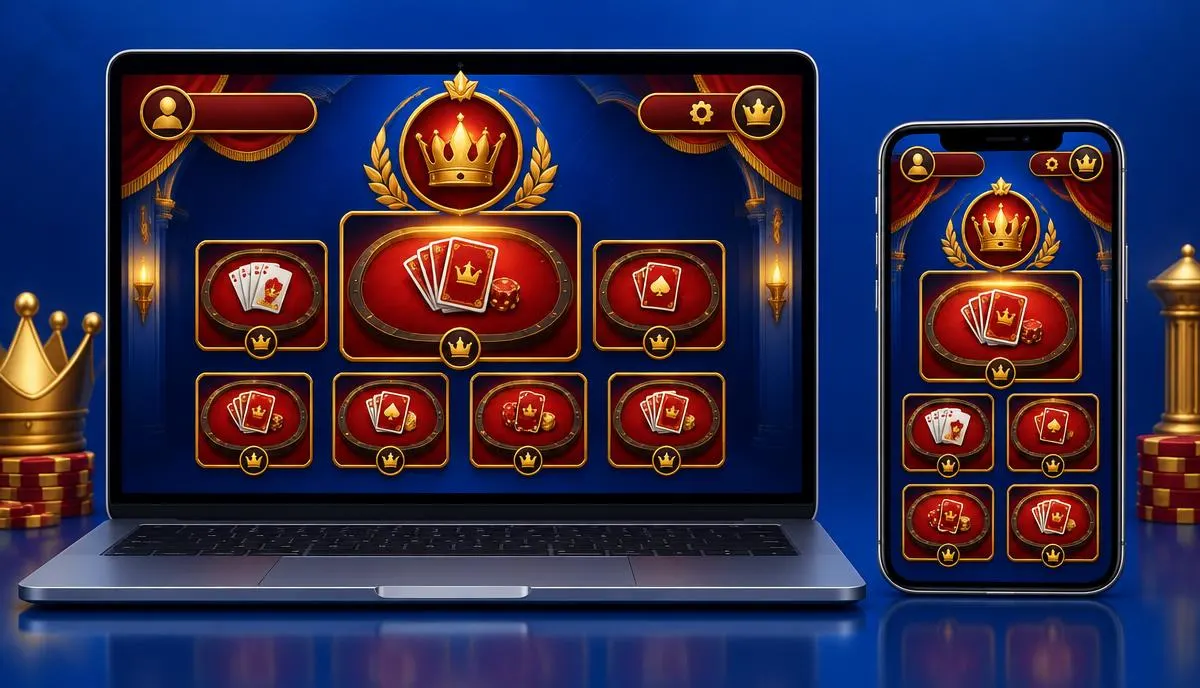
While Luck55 is primarily a mobile application, many players in Pakistan prefer the stability and large display of a PC or laptop. By using an Android emulator, you can run the Lucky 555 APK on your Windows or Mac computer easily.
Benefits of Playing Luck55 on PC
Playing the card and slot lobby on a computer offers several advantages over a mobile phone. First and foremost is the screen size. The detailed graphics of the Luck55 king mascot and the vibrant colors of the arcade games look much better on a 15-inch or 24-inch monitor. It allows for a more immersive experience that a small smartphone screen can't match.
Performance is another key factor. Most modern PCs and laptops have significantly more RAM and processing power than a mid-range Android phone. This means smoother transitions, faster loading times for the official download page content, and less lag during critical moments in the game. Additionally, you don't have to worry about battery drain or incoming phone calls interrupting your session.
Choosing the Right Android Emulator
To run the APK on your PC, you will need a piece of software called an Android emulator. This creates a 'virtual' Android phone inside your Windows or Mac environment. Several excellent free options are available that work perfectly with Luck55.
BlueStacks and LDPlayer are two of the most popular choices for gamers in Pakistan. They are highly optimized for gaming and offer features like multi-instance (running two apps at once) and keyboard mapping. NoxPlayer is another great alternative, especially for older laptops that might not have the latest hardware. Whichever you choose, ensure you download it from the official developer site to avoid security risks.
- BlueStacks: Best for all-around compatibility and features.
- LDPlayer: Lightweight and very fast on Windows.
- NoxPlayer: Great for older hardware and customization.
- Memu Play: Optimized for high-performance gaming.
- GameLoop: Specifically designed for a smooth gaming experience.
Main Download Guide
See the complete step-by-step page.
Step-by-Step PC Installation Guide
Setting up the game on your PC is a two-part process: first, install the emulator, and then install the Lucky 555 APK within it. Most emulators make this very easy with a 'drag and drop' feature. Once the emulator is running, you simply pull the APK file into the window, and it installs automatically.
If you haven't done it yet, follow our Android installation guide principles, as the settings inside the emulator are identical to a real phone. You will still need to ensure that 'Unknown Sources' is allowed within the virtual Android environment to get the lobby up and running.
- Download and install a reputable Android emulator (like BlueStacks or LDPlayer).
- Launch the emulator and sign in with a Google account (optional, but helpful for syncing).
- Download the Luck55 APK file to your PC's desktop.
- Drag the APK file into the emulator window or use the 'Install APK' button.
- Once the king mascot icon appears, click it to launch the game.
Optimizing Performance for Laptops
If you are playing on a laptop, you might need to adjust some settings to get the best experience. Emulators can be resource-heavy, so it's a good idea to close other background applications like Chrome or Spotify. In the emulator settings, you can often allocate more CPU cores and RAM to ensure the Luck55 arcade games run at a high frame rate.
Another important tip is to enable 'VT-x' or 'Virtualization Technology' in your computer's BIOS settings. Most modern laptops support this, and it can increase emulator performance by up to 5 times. If the game feels sluggish, this is usually the first thing you should check. Keeping your graphics drivers updated is also crucial for a glitch-free visual experience.
ℹ Mac Users
Maintaining Account Security on PC
Using a PC introduces different security considerations. Unlike a personal phone, a computer might be shared with family members. It is vital to log out of your Luck55 account if you are not the only one using the machine. You should also avoid using the 'Remember Password' feature on shared computers to prevent unauthorized access to your lobby progress.
Furthermore, ensure your PC has a reliable antivirus software active. Since you are downloading files like the update the app APK from the internet, a secondary layer of protection is always beneficial. Responsible gaming on a PC means keeping your software environment as secure as your physical one.
Frequently asked questions
Can I play Luck55 on Windows 11 without an emulator?
While Windows 11 supports some Android apps, it is often easier and more reliable to use a dedicated emulator like BlueStacks for gaming.
Will my phone account work on my PC?
Yes, you can use the same login credentials to access your account across multiple devices, including your phone and PC.
Is playing on an emulator against the rules?
Generally, no. Most mobile platforms allow the use of emulators, but you should always check the in-app terms of service to be sure.
Why is the emulator running slowly on my laptop?
You may need to enable Virtualization (VT) in your BIOS settings or allocate more RAM to the emulator.
Can I use a controller to play Luck55 on PC?
Most emulators allow you to map keyboard keys or controller buttons to screen taps, which can be useful for certain arcade games.
⚠ Responsible use